07. Animating based on drag events
Kotlin SM A06 Drag Events
Animating based on drag events
For this step, you will build an animation that responds to a user drag event (such as when the user swipes the screen) to run the animation. Motionlayout supports tracking touch events to move views, as well as physics-based fling gestures to make the motion fluid.
After you complete this step, you'll have implemented the following animation that responds to touch.
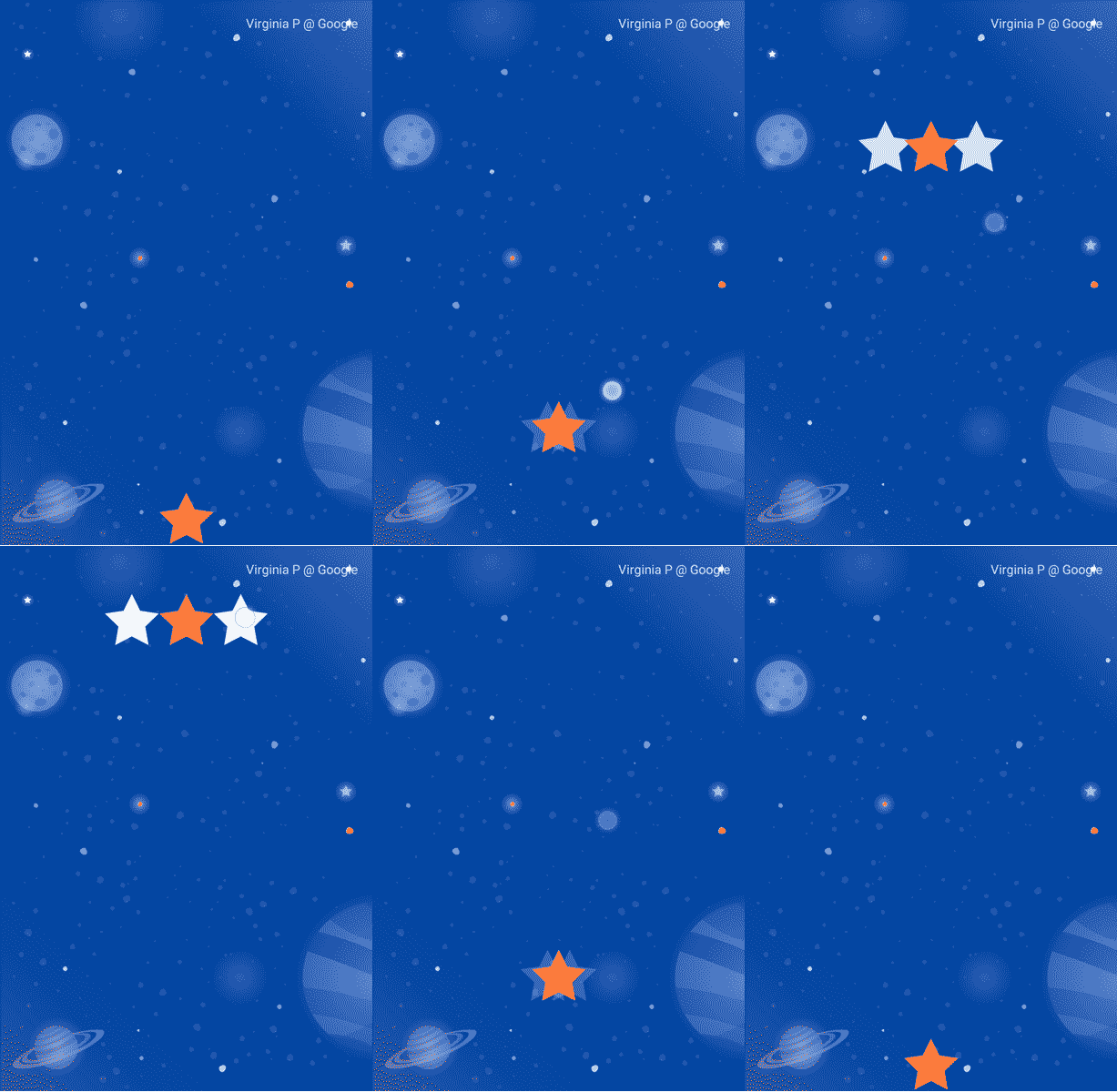
Kotlin SM A07 Step 2 Activity
Inspect the initial code
- To get started, open the layout file
activity_step2.xml, which has an existingMotionLayout. Take a look at the code.
<!-- initial code in activity_step2.xml -->

<androidx.constraintlayout.motion.widget.MotionLayout
       ...
       app:layoutDescription="@xml/step2" >

   <ImageView
           android:id="@+id/left_star"
           ...
   />

   <ImageView
           android:id="@+id/right_star"
           ...
   />

   <ImageView
           android:id="@+id/red_star"
           ...
   />

   <TextView
           android:id="@+id/credits"
           ...
           app:layout_constraintTop_toTopOf="parent"
           app:layout_constraintEnd_toEndOf="parent"/>
</androidx.constraintlayout.motion.widget.MotionLayout>
This layout defines all the views for the animation. The three star icons are not constrained in the layout because they will be animated in the motion scene.
The credits TextView does have constraints applied, because it stays in the same place for the entire animation and doesn't modify any attributes.
Views that are not animated by a MotionLayout animation should specify their constraints in the layout XML file. MotionLayout will not modify constraints that aren't referenced by a <Constraint> in the <MotionScene>.
Views that are animated should have their constraints set in the motion scene XML file.
Animating the scene
Just like the last animation, the animation will be defined by a start and end ConstraintSet, and a Transition.
Define the start ConstraintSet
- Open the motion scene
xml/step2.xmlto define the animation. - Add the constraints for the starting constraint start. At the start, all three stars are centered at the bottom of the screen. The right and left stars have an
alphavalue of0.0, which means that they're fully transparent and hidden.
<!-- xml/step2.xml →
<!-- TODO apply starting constraints -->

<!-- Constraints to apply at the start of the animation -->
<ConstraintSet android:id="@+id/start">
   <Constraint
           android:id="@+id/red_star"
           android:layout_width="wrap_content"
           android:layout_height="wrap_content"
           app:layout_constraintStart_toStartOf="parent"
           app:layout_constraintEnd_toEndOf="parent"
           app:layout_constraintBottom_toBottomOf="parent" />

   <Constraint
           android:id="@+id/left_star"
           android:layout_width="wrap_content"
           android:layout_height="wrap_content"
           android:alpha="0.0"
           app:layout_constraintStart_toStartOf="parent"
           app:layout_constraintEnd_toEndOf="parent"
           app:layout_constraintBottom_toBottomOf="parent" />

   <Constraint
           android:id="@+id/right_star"
           android:layout_width="wrap_content"
           android:layout_height="wrap_content"
           android:alpha="0.0"
           app:layout_constraintStart_toStartOf="parent"
           app:layout_constraintEnd_toEndOf="parent"
           app:layout_constraintBottom_toBottomOf="parent" />
</ConstraintSet>
In this ConstraintSet you specify one Constraint for each of the stars. Each constraint will be applied by MotionLayout at the start of the animation.
Each star view is centered at the bottom of the screen using start, end, and bottom constraints. The two stars @id/left_star and @id/right_star both have an additional alpha value that makes them invisible and that will be applied at the start of the animation.
Note: The start and end constraint sets define the start and end of the animation. A constraint on the start, like app:layout_constraintStart_toStartOf will constrain a view's start to the start of another view. This can be confusing at first because the name start is used for both and they're both used in the context of constraints. To help draw out the distinction, the start in layout_constraintStart refers to the "start" of the view, which is the left in a left to right language and right in a right to left language. The start constraint set refers to the start of the animation..
You can specify an alpha value in a Constraint. This value determines the transparency of the view, where '"0.0"' is fully transparent and '"1.0"' is fully opaque.
When animating between two alpha values, MotionLayout will smoothly transition between them. For example, when animating between alpha="0.0" and alpha="1.0", MotionLayout will create a fade-in effect.
Define the end ConstraintSet
- Define the end constraint to set use a chain to position all three stars together below
@id/credits. In addition, it will set the end value of thealphaof the left and right stars to1.0.
<!-- xml/step2.xml →
<!-- TODO apply ending constraints →

<!-- Constraints to apply at the end of the animation -->
<ConstraintSet android:id="@+id/end">

   <Constraint
           android:id="@+id/left_star"
           android:layout_width="wrap_content"
           android:layout_height="wrap_content"
           android:alpha="1.0"
           app:layout_constraintHorizontal_chainStyle="packed"
           app:layout_constraintStart_toStartOf="parent"
           app:layout_constraintEnd_toStartOf="@id/red_star"
           app:layout_constraintTop_toBottomOf="@id/credits" />

   <Constraint
           android:id="@+id/red_star"
           android:layout_width="wrap_content"
           android:layout_height="wrap_content"
           app:layout_constraintStart_toEndOf="@id/left_star"
           app:layout_constraintEnd_toStartOf="@id/right_star"
           app:layout_constraintTop_toBottomOf="@id/credits" />

   <Constraint
           android:id="@+id/right_star"
           android:layout_width="wrap_content"
           android:layout_height="wrap_content"
           android:alpha="1.0"
           app:layout_constraintStart_toEndOf="@id/red_star"
           app:layout_constraintEnd_toEndOf="parent"
           app:layout_constraintTop_toBottomOf="@id/credits" />
</ConstraintSet>
The end result is that the views will spread out and up from the center as they animate.
In addition, since the alpha property is set on @id/right_start and @id/left_star in both ConstraintSets, both views will fade in as the animation progresses.
Animating based on user swipe
MotionLayout can track user drag events, or a swipe, to create a physics-based "fling" animation. This means the views will keep going if the user flings them and will slow down like a physical object would when rolling across a surface. You can add this type of animation with an OnSwipe tag in the Transition.
- Replace the
TODOfor adding anOnSwipetag with<OnSwipe app:touchAnchorId="@id/red_star" />.
<!-- xml/step2.xml -->
<!-- TODO add OnSwipe tag -->

<!-- A transition describes an animation via start and end state -->
<Transition
       app:constraintSetStart="@+id/start"
       app:constraintSetEnd="@+id/end">
   <!-- MotionLayout will track swipes relative to this view -->
   <OnSwipe app:touchAnchorId="@id/red_star" />
</Transition>
OnSwipe contains a few attributes, the most important being touchAnchorId.
touchAnchorId- the tracked view that moves in response to touch. MotionLayout will keep this view the same distance from the finger that's swiping.touchAnchorSide- which side of the view should be tracked. This is important for views that resize, follow complex paths, or have one side that moves faster than the other.dragDirection- which direction matters for this animation (up, down, left or right)
When MotionLayout listens for drag events, the listener will be registered on the MotionLayout view and not the view specified by touchAnchorId. When a user starts a gesture anywhere on the screen, MotionLayout will keep the distance between their finger and the touchAnchorSide of the touchAnchorId view constant. If they touch 100dp away from the anchor side, for example, MotionLayout will keep that side 100dp away from their finger for the entire animation.
OnSwipe listens for swipes on the MotionLayout and not the view specified in touchAnchorId.
This means the user may swipe outside of the specified view to run the animation.
Try it out
Run the app again, and open the Step 2 screen. You will see the animation.
Try "flinging" or releasing your finger halfway through the animation to explore how
MotionLayoutdisplays fluid physics based animations!
MotionLayout can animate between very different designs using the features from ConstraintLayout to create rich effects.
In this animation, all three views are positioned relative to their parent at the bottom of the screen to start. At the end, the three views are positioned relative to @id/credits in a chain.
Despite these very different layouts, MotionLayout will create a fluid animation between start and end.